USB-C Hub Setup Guide 2026: Cleaner Laptop + Phone Workflow Without Cable Chaos
Most desks are overloaded for one reason: too many small devices, too many charging bricks, and no real cable plan. In 2026, the trend is not just faster charging. It is cleaner USB-C setups that let one hub manage power, data, and accessories for your daily workflow.
If you use a laptop and phone side by side, the right USB-C hub setup can reduce desk clutter, keep your devices topped up, and make quick transitions between work and personal use much easier.
This guide shows what to buy first, how to place each accessory, and how to avoid the most common setup mistakes.
Fast answer
- Use one quality USB-C hub as your desk anchor, not multiple adapters.
- Separate power cables from data cables so troubleshooting stays easy.
- Add one charging point near your hand and one near the desk edge for overflow devices.
- Label or color-code short cables to avoid unplugging the wrong device.
Why USB-C hub workflows are trending in 2026
Accessory demand this year keeps moving toward consolidation. Instead of carrying separate dongles for storage, audio, and charging, users are building fixed desk stations where one hub handles the core connection and everything else stays in place.
That approach matters most for people who switch devices throughout the day: laptop for work, phone for messaging and quick uploads, smartwatch for notifications, and one or two lifestyle gadgets on standby.
Step 1: Pick your desk anchor device
Start with the device you connect and disconnect most often. For many setups, that is the laptop. For others, especially creators or social sellers, it is the phone.
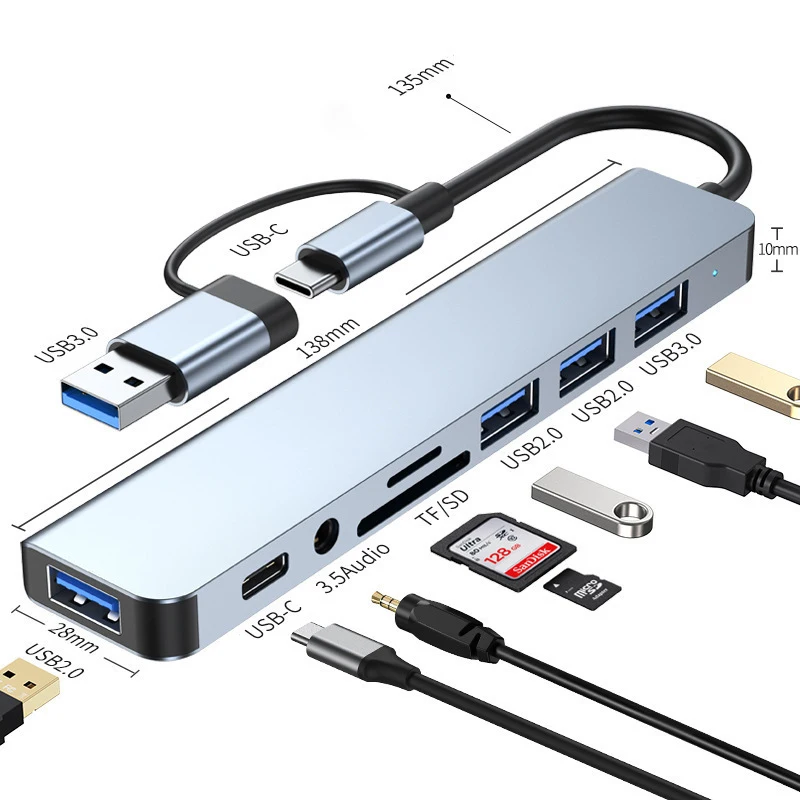
If your workflow includes both, use a USB-C hub with enough flexibility to handle storage accessories, charging passthrough, and quick reconnects. A practical starting point is the 8-in-2 USB + Type C HUB Docking Station, which gives you a central point instead of scattered adapters.
Step 2: Build a two-zone cable layout
Zone A: Active cables
Keep one short, easy-reach cable for the device you use most often. This is your high-frequency cable and should never be tangled behind other gear.
Zone B: Support cables
Place lower-frequency devices (watch charger, backup phone, occasional accessories) near the desk edge. They stay available but do not interfere with active work.
Step 3: Pair your hub with the right accessories
A better workflow comes from matching accessories to your real routine. Examples:
- 8-in-2 USB + Type C HUB Docking Station for multi-port desk control.
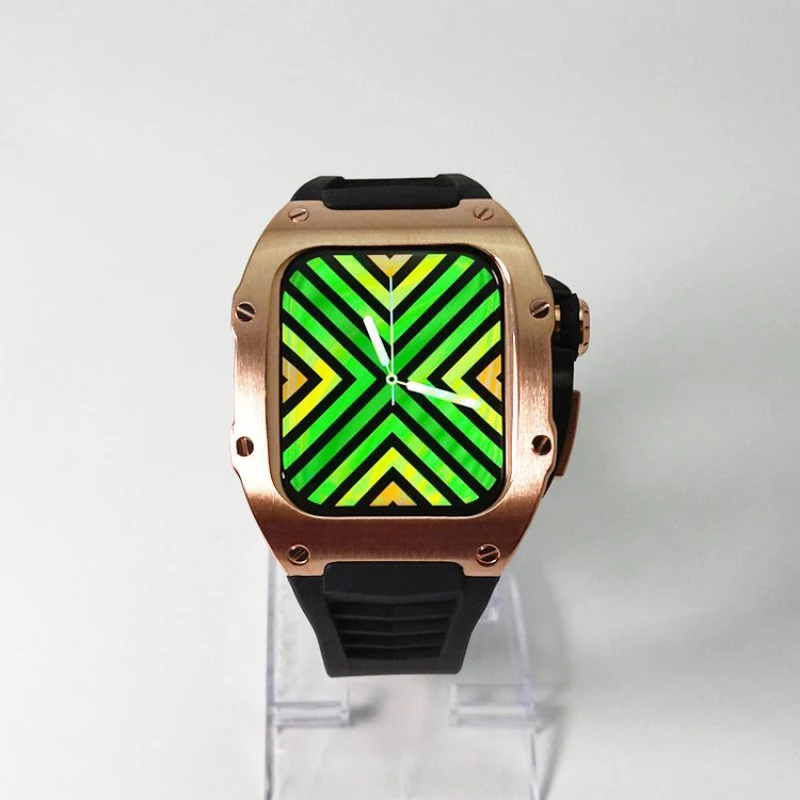
- Smart Watch with 2.02-inch HD Display for connected notifications while your phone stays docked.
- Rechargeable Electric Eyelash Curler and Collagen Facial Essence tool for personal-care charging needs in vanity + desk hybrid setups.
- Electric Deep Muscle Massager if you keep wellness devices at your workstation.
- KBDFA P1 RC Drone users can keep media transfer and charging accessories organized through one docking point.
The point is not to connect everything at once. It is to create a repeatable layout where every device has a known position and cable.
How to prevent heat, wear, and random disconnects
Use short cables where possible
Long loops look harmless but add tension and snag risk. Short, high-quality cables reduce dropouts and are easier to keep tidy.
Give your hub airflow
Do not bury hubs under notebooks or cloth desk mats. Keep at least a little open space around the body to dissipate heat during longer sessions.
Avoid constant plug cycling
If you repeatedly unplug the same port, that port wears faster. Assign stable ports to stable devices and keep one flexible port free for temporary use.
Mistakes to avoid in a 2026 setup
- Using several low-quality adapters instead of one reliable hub.
- Running power and data over unknown cables with no labeling.
- Buying a hub with too few ports, then adding more adapters anyway.
- Placing chargers where cable bends are forced at sharp angles.
- Ignoring desk ergonomics; your most-used cable should be one-hand reachable.
Simple 20-minute setup plan
- Clear the desk and identify your top three daily devices.
- Place the hub near your primary hand but outside keyboard movement.
- Connect your core device first, then add one accessory at a time.
- Test each port quickly before routing cables permanently.
- Bundle spare cable length behind the monitor line, not beside your mouse area.
Related guides
If your current setup is mainly wireless charging, read Qi2 Charging Setup 2026 and Smartwatch Charging Habits in 2026 for a cleaner hybrid desk design.
For a broader product sweep, browse the GoShopr shop and shortlist accessories by your actual daily workflow, not by trend alone.
FAQ
Do I need a USB-C hub if I only use two devices?
If both devices need frequent charging or data transfer, yes. A hub still improves consistency and cable control.
Can one hub handle laptop and phone charging together?
Many can, but performance depends on charger and cable quality. Always use known-good cables for stable output.
Is wireless charging enough for a desk setup?
Wireless is great for convenience, but wired USB-C remains better for reliable data transfer and steady high-demand workflows.
How often should I replace cables?
Replace any cable that shows fraying, connector looseness, heat irregularities, or random disconnect behavior.
What is the easiest way to reduce desk clutter fast?
Start by removing duplicate adapters and rebuilding around one hub plus two or three essential cables.
Should I keep spare ports open?
Yes. Keep at least one free port for temporary devices so your core layout stays stable.
Image source
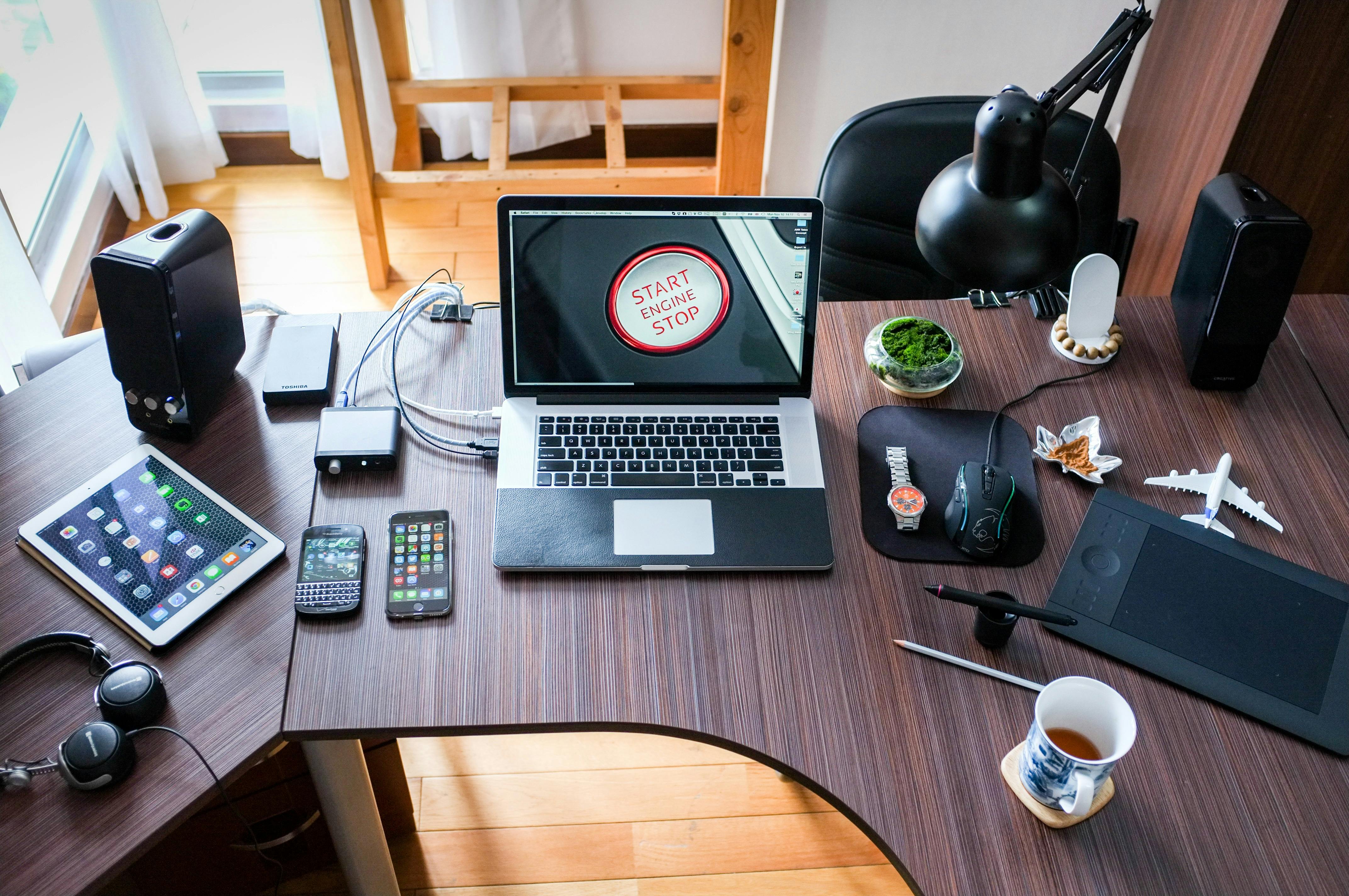
Free stock image URL: https://images.pexels.com/photos/356056/pexels-photo-356056.jpeg
Alt text: USB-C laptop workspace with phone and accessories on desk