
USB-C Hub Setup Guide 2026: Prevent Overheating, Balance Power, and Build a Cleaner Desk
USB-C hubs look simple until you connect everything at once: monitor, keyboard, SSD, charging cable, webcam, and maybe a phone. Then heat rises, charging slows, and random disconnects begin. In 2026, the smarter setup trend is not buying more accessories, it is building a cleaner power map: what draws power, what passes power, and what should run direct to the laptop.
This guide gives a practical hub workflow for daily desks and hybrid workstations. You will learn how to split high-draw and low-draw devices, reduce cable strain, and choose safe charging behavior for long sessions.
Quick answer: safest everyday USB-C hub setup
- Use one hub port group for data (mouse, keyboard, receiver).
- Keep storage and display on separate high-bandwidth ports when possible.
- Do not run laptop charging + phone fast charging + external SSD from a weak power source.
- Leave airflow around the hub body; avoid fabric surfaces and closed cable piles.
Why hubs overheat in normal use
Heat usually comes from combined load, not a single device. The most common pattern is power passthrough + high-speed transfer + video output happening together. Even good hubs warm up under sustained throughput. The goal is to keep temperatures stable enough that your ports do not throttle and disconnect.
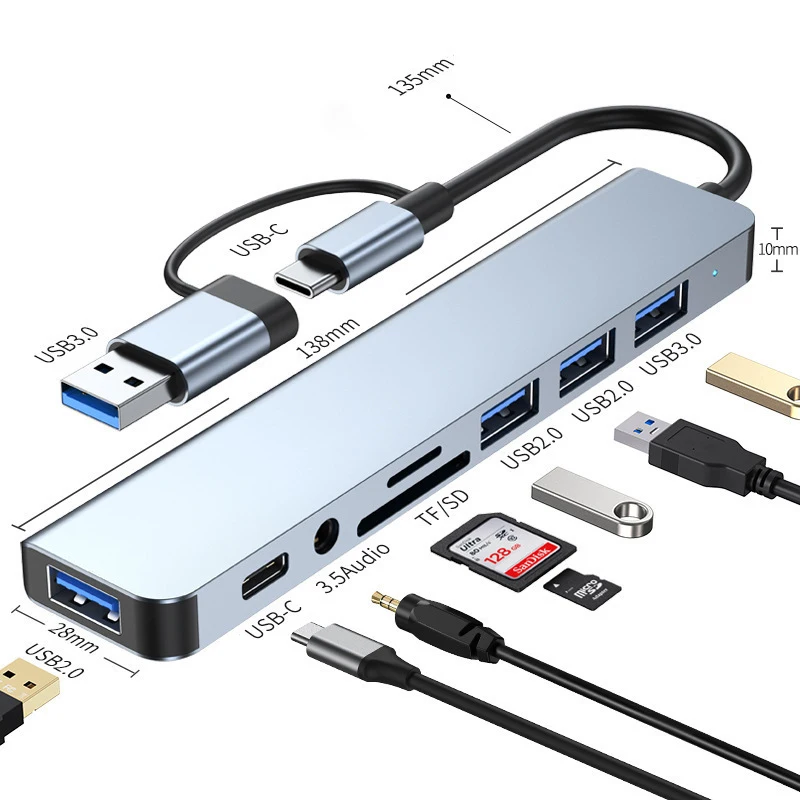
If your setup relies on the 8 in 2 USB + Type-C HUB Docking Station, give it a clear cable route and avoid stacking adapters directly beside its vents or shell body.
Step-by-step 2026 desk layout that actually works
1) Assign device roles first
Split your accessories into three groups:
- Low draw: keyboard, mouse dongle, card reader
- Medium draw: webcam, microphone interface
- High draw: SSD, display adapter, fast charging outputs
Connect high-draw gear first, then fill low-draw ports. This prevents accidental overloading.
2) Keep charging realistic
A hub is not always the best place for every charging task. If laptop charging is routed through the hub, avoid plugging another high-watt device into the same chain unless your adapter can handle it with headroom. For travel desks, many users now keep a dedicated wall adapter for phones and reserve the hub for data + display.
3) Fix cable path and bend stress
Sharp bends near USB-C connectors create instability. Use a gentle curve from laptop to hub, and keep cable tension off the connector body. If the hub shifts when you move the laptop, add a small anti-slip base or cable clip.
Practical troubleshooting when devices disconnect
Symptom: SSD drops after a few minutes
Move SSD to the highest-speed dedicated port and disconnect non-essential charging devices during large transfers.
Symptom: monitor flickers after plugging phone cable
You are likely hitting power or bandwidth limits. Remove one charging output or use direct charging for the phone.
Symptom: hub body gets too hot to touch
Reduce simultaneous high-load tasks, improve airflow, and check if your power adapter wattage is undersized for your full setup.
Accessories from our catalog that fit this workflow
- 8 in 2 USB + Type-C HUB Docking Station for multi-device desk setups.
- Metal Apple Watch case + strap set for cleaner wearable storage at your desk.
- Transparent Apple Watch Ultra case + strap when you rotate between office and workout use.
- Smart Watch HD Display model for secondary notification handling while laptop ports stay focused on core devices.
Image reference (topic-matched free stock)

Source: Wikimedia Commons (CC license). Alt text: Close-up of USB-C connector used in modern charging and data hubs.

Source: Wikimedia Commons (CC license). Alt text: USB Type-C plug detail showing reversible connector design.
FAQ
1) Can one USB-C hub power my laptop and all accessories?
Sometimes, but only if adapter wattage and hub power design support your full load with margin.
2) Is hub heat always dangerous?
No. Warm is normal. Persistent high heat plus disconnects means your setup needs load balancing.
3) Should I charge my phone through the hub?
For light use yes; for fast charging during heavy desk activity, direct wall charging is usually better.
4) Why does video fail when I add another USB device?
You may be at a bandwidth limit. Prioritize display and storage, then add low-speed peripherals.
5) How do I make my desk cleaner without sacrificing performance?
Use short labeled cables, separate charging from data when possible, and keep the hub in open airflow.
6) Is USB-C enough for future accessories?
Yes for most current peripherals; just verify each accessory’s power and speed requirements.
Final checklist before daily use
Connect core devices first, confirm stable display signal, run a short file transfer test, then add optional accessories one by one. If you want more practical setup ideas, check our latest posts in the blog.



One thought on “USB-C Hub Setup Guide 2026: Prevent Overheating, Balance Power, and Build a Cleaner Desk”